Whether you’re working from home full-time or just need more screen space for your side hustle, a dual monitor setup can transform how you work. But here’s the thing: slapping two monitors on your desk without thinking through the furniture and ergonomics leads to neck strain, cable chaos, and a workspace that feels cramped instead of productive. The right setup starts with the furniture underneath those screens.
Desk Size and Configuration: The Foundation That Matters
Your desk needs to accommodate not just the monitors, but also your keyboard, mouse, and any documents or accessories you use daily. For a comfortable dual monitor setup, look for desks at least 55 inches wide—60 inches is even better. This gives you enough space to angle monitors slightly inward without feeling boxed in.
Depth matters too. A standard 24-inch desk might work for laptops, but dual monitors need 30 inches minimum to achieve proper viewing distance. If you’re using monitor arms (more on that in a moment), you can get away with slightly less depth since the arms position screens forward.
Corner desks work beautifully for dual setups because they naturally create an ergonomic curve. L-shaped desks in the $300-$600 range often include cable management features and sturdy construction. For straight desks, expect to spend $250-$400 for budget options with basic stability, $400-$800 for mid-range desks with better materials and adjustability, and $800+ for standing desk frames or solid wood designs.
Monitor Arms vs. Desktop Stands: Choosing Your Support System
This decision dramatically affects both your desk space and your ergonomic comfort. Desktop stands—the bases monitors come with—are simple and stable, but they eat up surface area and offer limited adjustability. If you go this route, make sure your desk has a reinforced back edge and enough depth that the stands don’t push your monitors too close to your face.
Monitor arms clamp to your desk and free up that entire footprint, giving you room for notebooks, coffee, or just breathing space. Dual monitor arms come in two styles: side-by-side mounts (where both monitors attach to one central pole) and individual arms (each monitor on its own articulating arm). Side-by-side mounts cost $80-$150 and work great if you want a symmetrical, locked-in setup. Individual arms run $120-$300 but give you maximum flexibility to adjust each screen independently.
Check your desk thickness before buying any arm—most clamps require 0.5 to 3 inches of clearance. Glass desks and some particleboard options can’t safely support monitor arms at all.
Layout and Ergonomics: Position for Comfort
Here’s where many dual setups go wrong. Your primary monitor should sit directly in front of you, with the top of the screen at or slightly below eye level. The secondary monitor goes to your dominant side at a 20-30 degree angle. Avoid the symmetrical “two monitors side by side” layout unless you genuinely use both equally—otherwise, you’ll twist your neck constantly trying to find center.
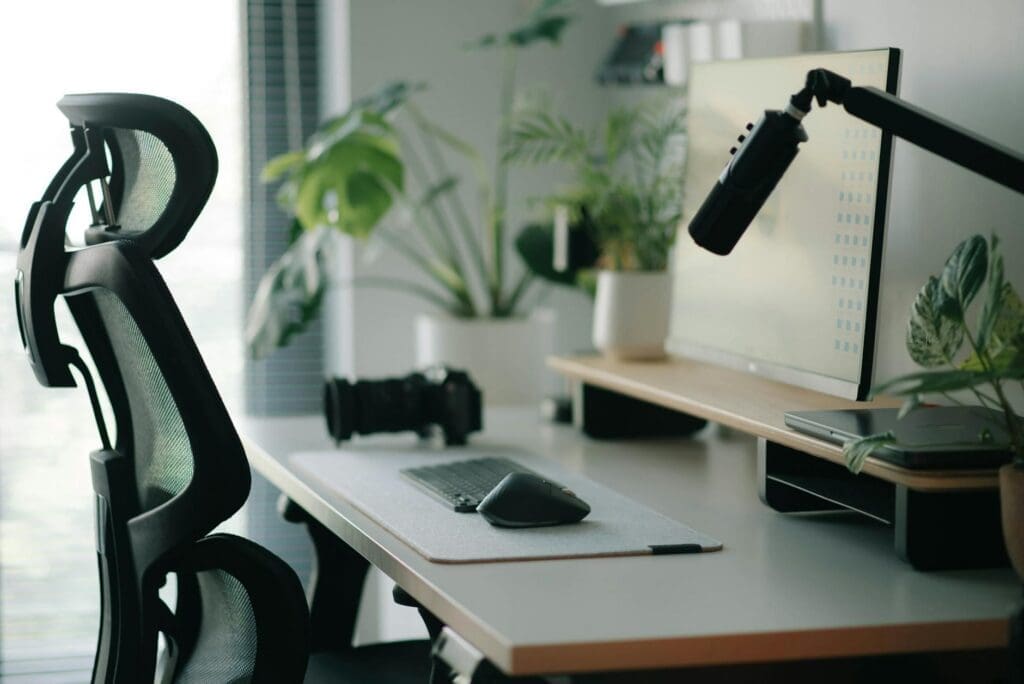
Monitor height is crucial. If your desk doesn’t allow proper positioning, add a monitor shelf or riser platform. These range from $30 wooden risers to $100+ metal shelves with built-in storage. The goal is screens positioned so you’re looking slightly downward, not craning your neck up or hunching forward.
Keep monitors 20-30 inches from your eyes. If you need to lean forward to read text, increase your font size rather than moving closer.
Cable Management and Power Solutions
Two monitors mean twice the cables—power cords, HDMI or DisplayPort cables, plus USB connections if you’re daisy-chaining peripherals. Desks with built-in cable management trays and grommets make this infinitely easier. If your desk lacks these, add a under-desk cable tray ($15-$40) or cable sleeves ($10-$25) to wrangle the mess.
You’ll also need accessible power. A surge protector with at least six outlets works, but a desk-mounted power strip or a clamp-on power hub ($25-$60) keeps everything within reach without cluttering your desktop. Some standing desks include integrated power management—worth the extra cost if you’re already investing in adjustability.
Getting your dual monitor setup right comes down to having furniture that supports the technology, not fights it. A desk with proper dimensions, the right mounting solution for your workflow, and thoughtful cable management turns two screens from a cluttered experiment into a workspace that actually makes your day easier. Measure your space, consider how you naturally work, and choose components that fit together as a system rather than piecemeal additions.
Your home office deserves better than a jumble of mismatched shelves and that filing cabinet you’ve been meaning to replace. A storage wall unit can transform your workspace from chaotic to composed, giving you dedicated spots for books, supplies, tech equipment, and all those things that currently live in piles. The trick is finding one […]
If you’re drowning in papers, sticky notes, and file folders that haven’t been touched in months, you’re not alone. The promise of a paper-free office isn’t just about going digital—it’s about choosing furniture and storage solutions that support a cleaner, more organized way of working. The right setup makes it easier to maintain that clutter-free […]
Your back is telling you it’s time. After months of working from home in a dining chair or that hand-me-down seat from college, you’re ready to invest in a proper office chair. The good news? You don’t need to spend $800 on a Herman Miller to get real ergonomic support. The under-$300 market is packed […]